

In an era where every major tech company demands an email sign-up and stores your personal scratchpad data on remote servers, many privacy-conscious users are asking a fundamental question:
*"Why do my daily shopping lists, private reminders, and quick thoughts need to pass through a cloud server just to move from my PC to my phone in the same room?"*
The truth is: they don't.
In this guide, we show you how to set up zero-latency, cloud-free local Wi-Fi synchronization between your Windows desktop/laptop and Android smartphone using SideNote.
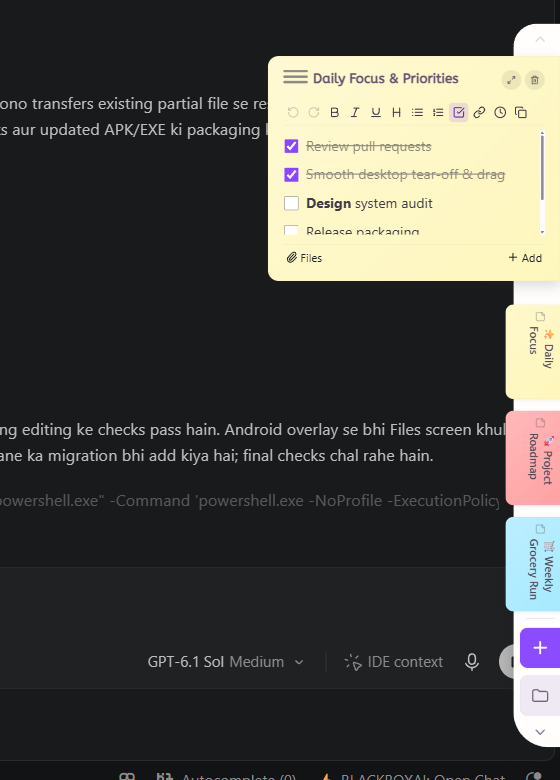
The Hidden Costs of Cloud-Based Note Apps
Popular note services like Google Keep, Notion, and Microsoft OneNote rely on continuous cloud synchronization. While convenient, this model introduces several workflow drawbacks:
1. Privacy Exposure: Sensitive information—such as meeting transcripts, Wi-Fi keys, draft contracts, and personal ideas—is stored on third-party servers subject to policy changes or breaches. 2. Sync Latency & Offline Gaps: If your internet connection drops or stutters, cloud notes may conflict, duplicate, or fail to sync between devices sitting just two feet apart. 3. Mandatory Accounts & Tracking: You are forced to maintain another set of credentials, agree to telemetry terms, and navigate unwanted promotional prompts.
The Solution: Peer-to-Peer Local Network Sync
SideNote pairs your Windows workstation and Android device directly over your existing local Wi-Fi network using encrypted peer-to-peer communication.
How It Works: - Direct Device Discovery: When both your Windows PC and Android phone are on the same Wi-Fi, SideNote discovers your devices instantly. - 0.1-Second Speed: Because data travels over local network routers rather than through external internet relays, note edits appear virtually instantaneously. - End-to-End Privacy: Data never leaves your personal local network. There are no cloud intermediary servers logging your keystrokes.
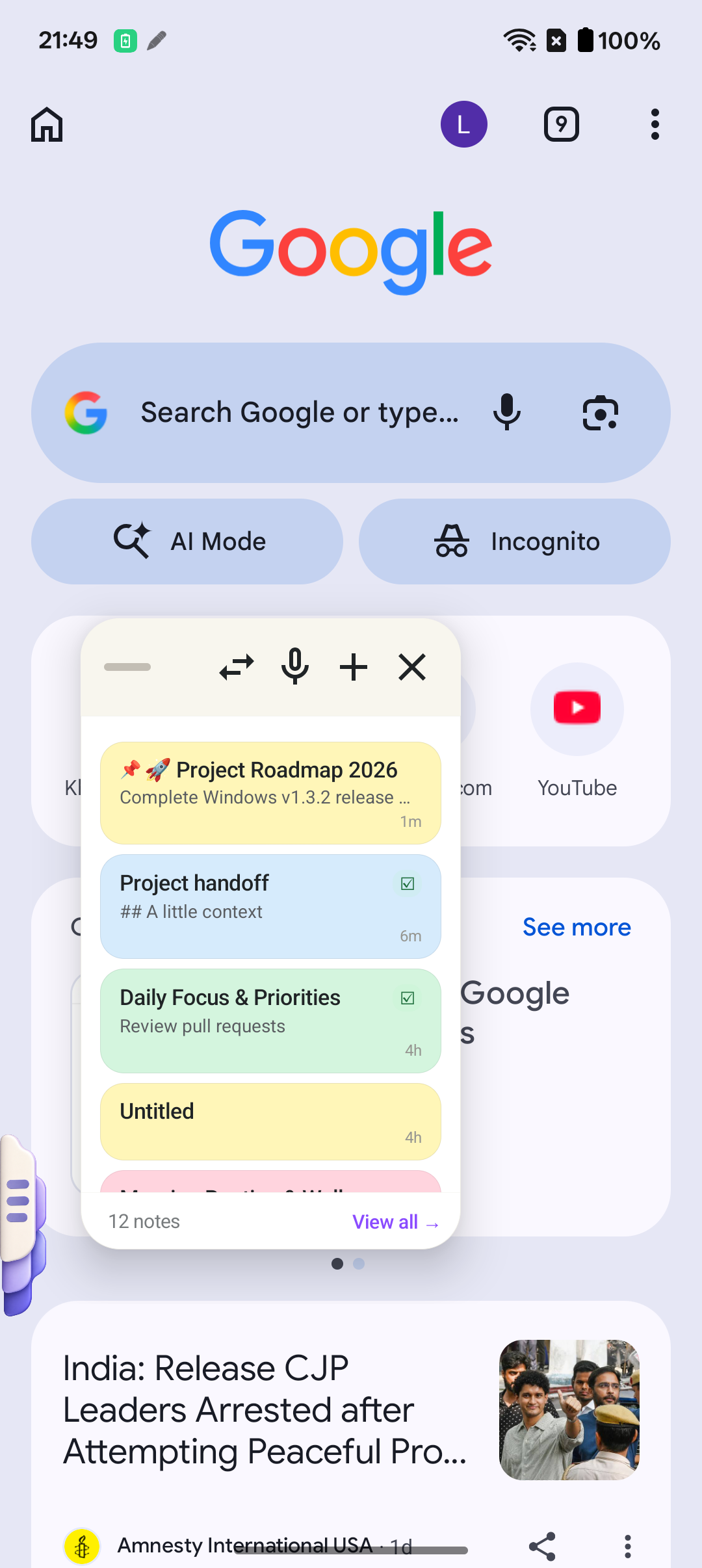
Step-by-Step Setup Guide
Setting up local note sync between Windows and Android takes less than two minutes:
Step 1: Install SideNote on Your Devices - On Android: Install SideNote from Google Play. - On Windows: Download the SideNote Windows Setup (Compatible with Windows 10 & Windows 11).
Step 2: Ensure Both Devices Are on the Same Wi-Fi Connect both your laptop/PC and Android phone to your home or office local Wi-Fi network.
Step 3: Pair Devices Seamlessly 1. Open SideNote on Windows and tap the Sync & Devices tab. 2. Open SideNote on Android, swipe open the edge drawer, and tap Pair with PC. 3. Scan the pairing QR code or confirm the prompt. 4. Done! Any note created, edited, or checked off on your PC keyboard will update in real time on your phone.
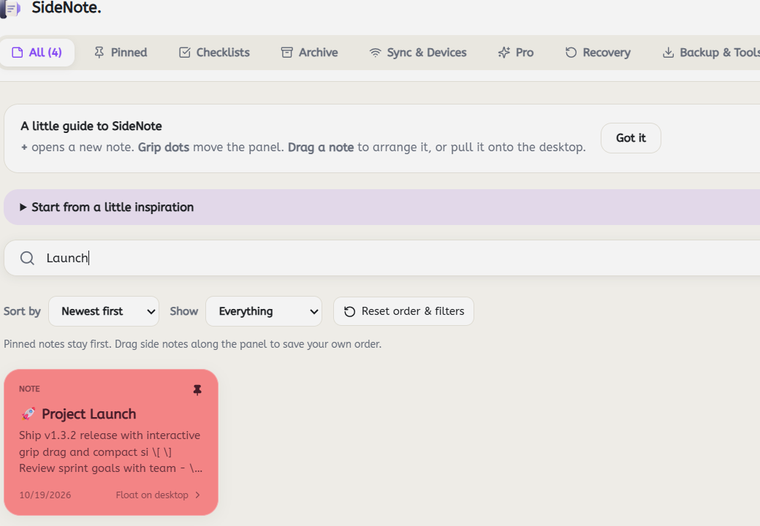
Advanced Multitasking on Windows and Android
Once paired, you get the best of both worlds: - On Windows: Use comfortable keyboard typing, tear-off always-on-top sticky notes, and clean screen-edge hover docks. - On Android: Access your full note library anytime using the 1-swipe screen edge handle, take voice notes on the go, and review checklists offline.
Experience a calmer, private, and truly fast note workflow with SideNote.